Form Submissions
Overview
The Submissions page will list all completed submissions for the form you selected.
Additionally, the search bar allows you to look for any submissions containing the data you’re looking for.
Search results can be further filtered by specific date and time ranges using the  filter button.
Classifier columns show field data filled out by the user, and the fields are configured from the form designer.
filter button.
Classifier columns show field data filled out by the user, and the fields are configured from the form designer.
When there are many submissions, the list will be split into pages.
The  Preferences button allows users to change how many submissions are viewed per page.
To navigate pages, click the arrows or the specific page number.
You may also type the page number you want to go to in the box to the right of the arrows, then click Go.
Preferences button allows users to change how many submissions are viewed per page.
To navigate pages, click the arrows or the specific page number.
You may also type the page number you want to go to in the box to the right of the arrows, then click Go.

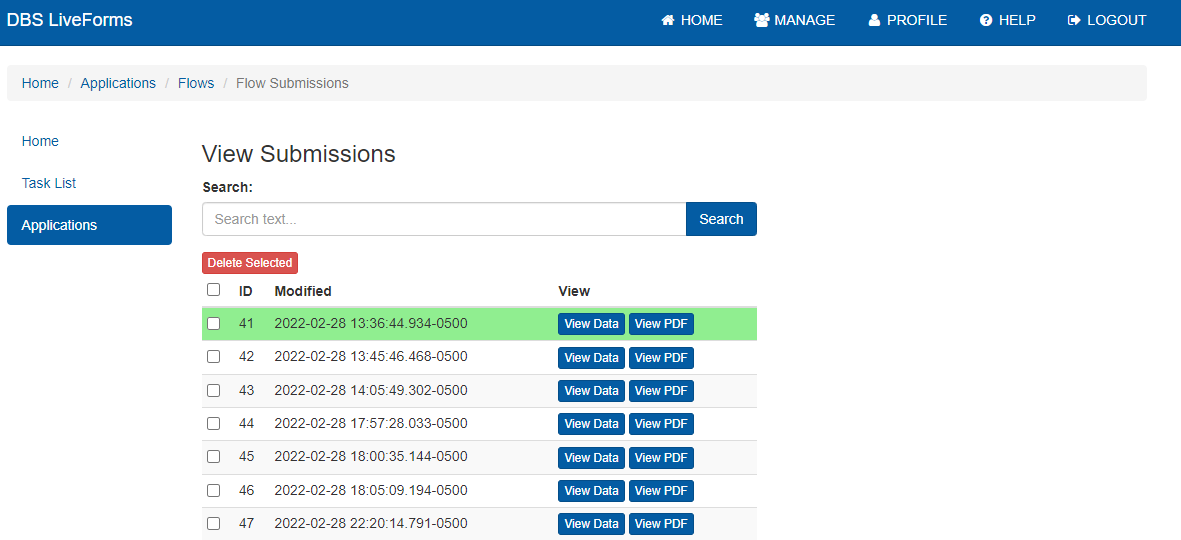
Each listing will have the option to View Data or View PDF/Create PDF.
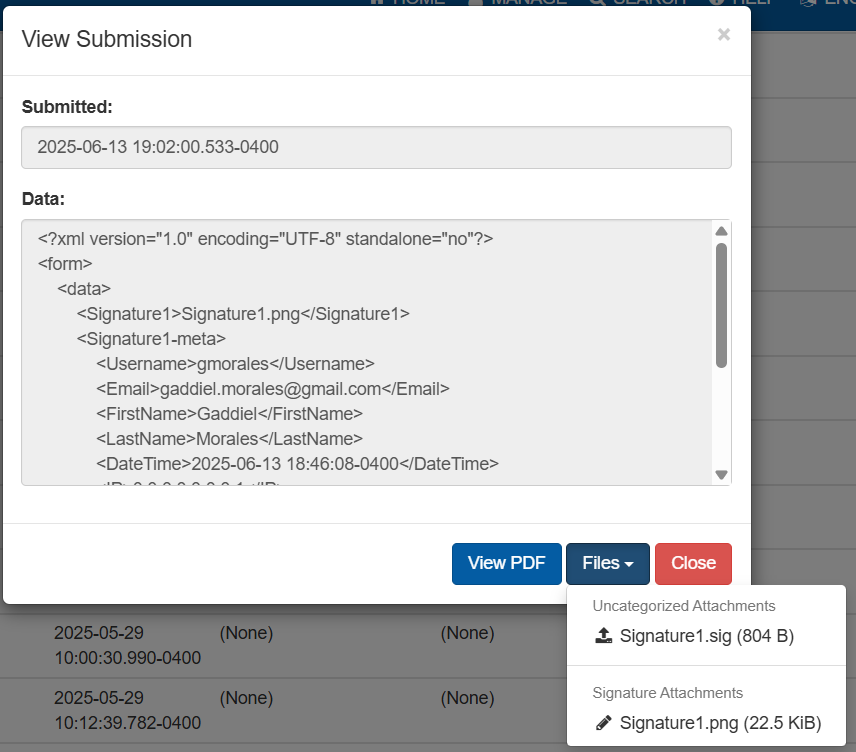
Clicking on View Data will display a pop-up containing the data submitted and the associated XML data for the Form Submission. There is a Files button in the data pop up to view form attachments and their storage size. Uploaded Attachments are files uploaded or scanned by the user. Static Attachments are form attachments included by design, such as barcodes. Signature Attachments show the captured signatures from the form.
Either in the submission list or in the data pop up, clicking View PDF or Create PDF shows the PDF view of the form submission. Whether the form saves the PDFs on submission or PDFs created on demand is configurable in the form options.
Warning
Barcodes in forms submitted before LiveForms 1.5.0 will not be recreated in the new PDF.
To delete submissions, users must select them using the checkbox on the left, then click the Action button, and finally click Delete Selected.
Warning
Please use caution when choosing to delete a Submission, as this action can NOT be reversed.
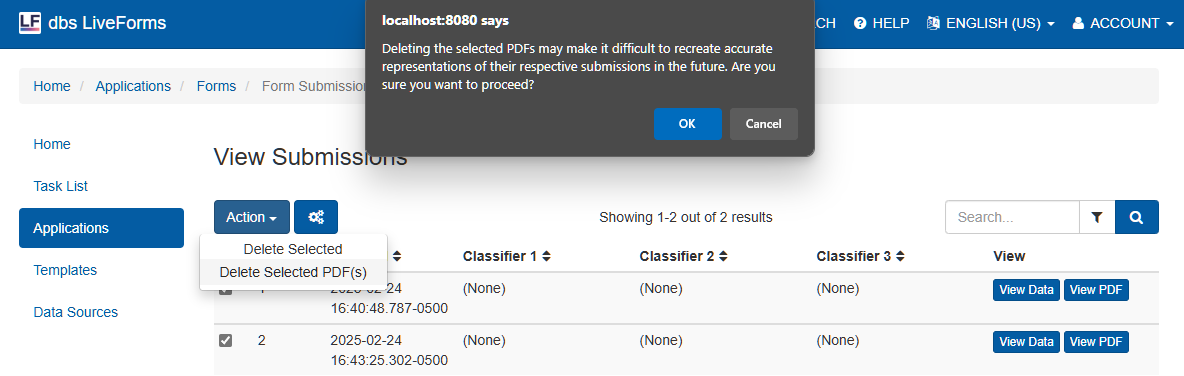
In the case of forms with large PDFs or large numbers of submissions, the PDFs may be deleted to save space. The XML data will still be available for viewing and downloading. To delete PDFs, select the desired forms, then click on Action and select Delete Selected PDF(s). Recreated PDFs use a saved form version specified in the XML to regenerate the PDF. If the form version is not available to the system, a warning will appear before deletion to inform the user that a recreated PDF may appear different from the original submission.